
Aldelo Express POS
Express back-office guide
Manage menu items, prices, employee access, schedules and sales reports for an Express store.
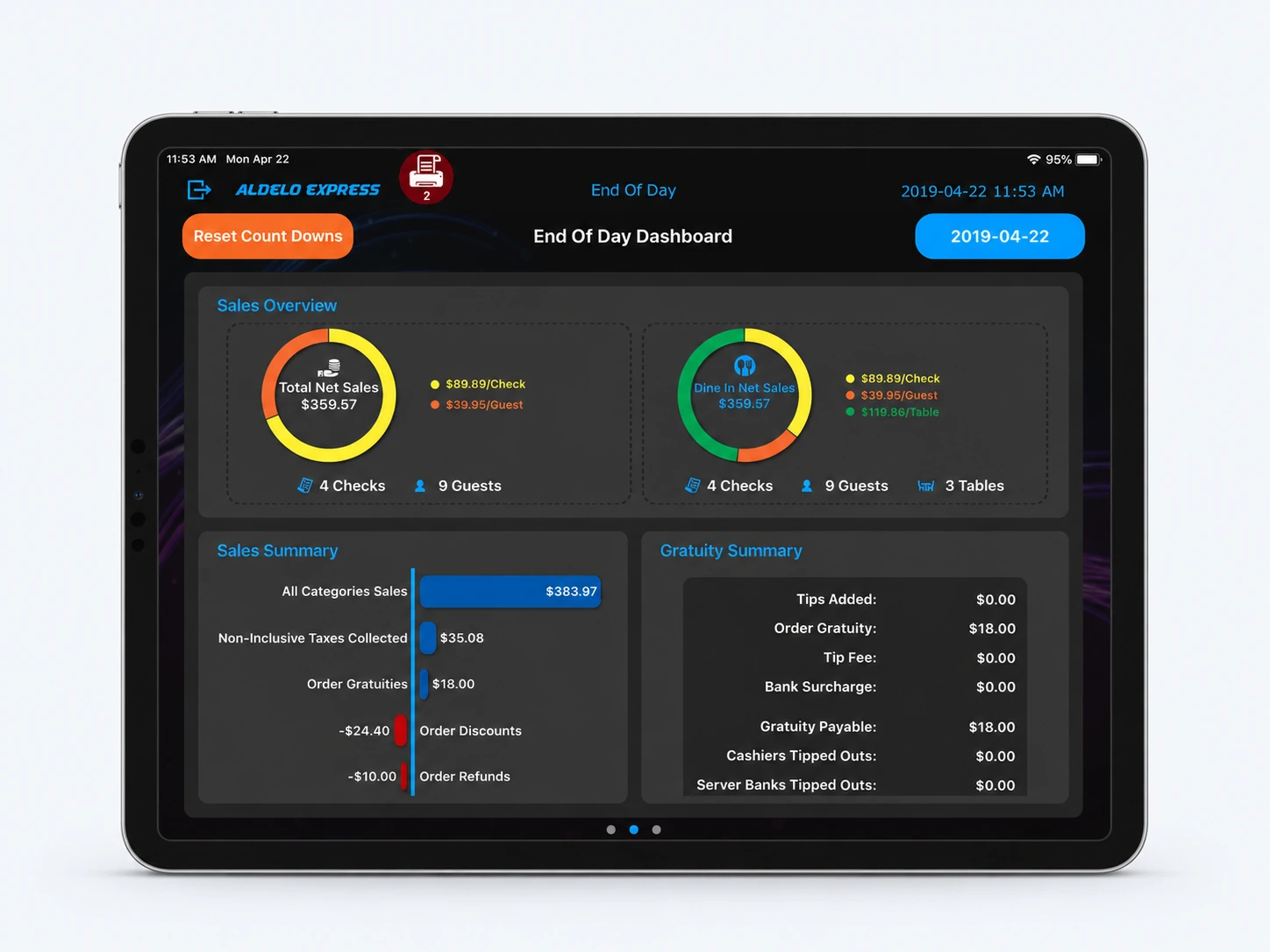
Manage your store
Open the correct location
Open Manager from the Express menu or use merchant sign-in. Select your store and confirm its name before opening Products, Staff, Settings or Analytics.
Add an item and its modifiers
In Products, select the menu group and add the item with its selling price. In modifier setup, create choices and any extra charges, then assign them to the item. Save and check the choices on a POS station.
Check pricing and kitchen routing
For a timed price such as happy hour, use Advanced Pricing and choose the group, days and times. Check the item’s printing options, then ring it up and verify its price and destination.
Set employee access
Open Staff to add or edit the employee and job title. In Settings, review Security Config for actions such as discounts and voids. Verify that the employee can perform the tasks assigned to their role.
Schedule a shift and review hours
In Staff, select Scheduling, choose the employee and enter the shift for the correct day. To review hours worked, open Time Card and select the employee and pay period.
Read a sales report
In Analytics, choose the sales report and the business date or reporting period. Compare the store and period with the shift you are reviewing before using the totals.
Need a hand with your setup?
Tell support which step you reached and the product version on your device. Keep passwords and private account records out of your message.