
Aldelo Express POS
Express printer setup
Connect a network printer to iPad or Android Express, route a kitchen item and print a guest receipt.
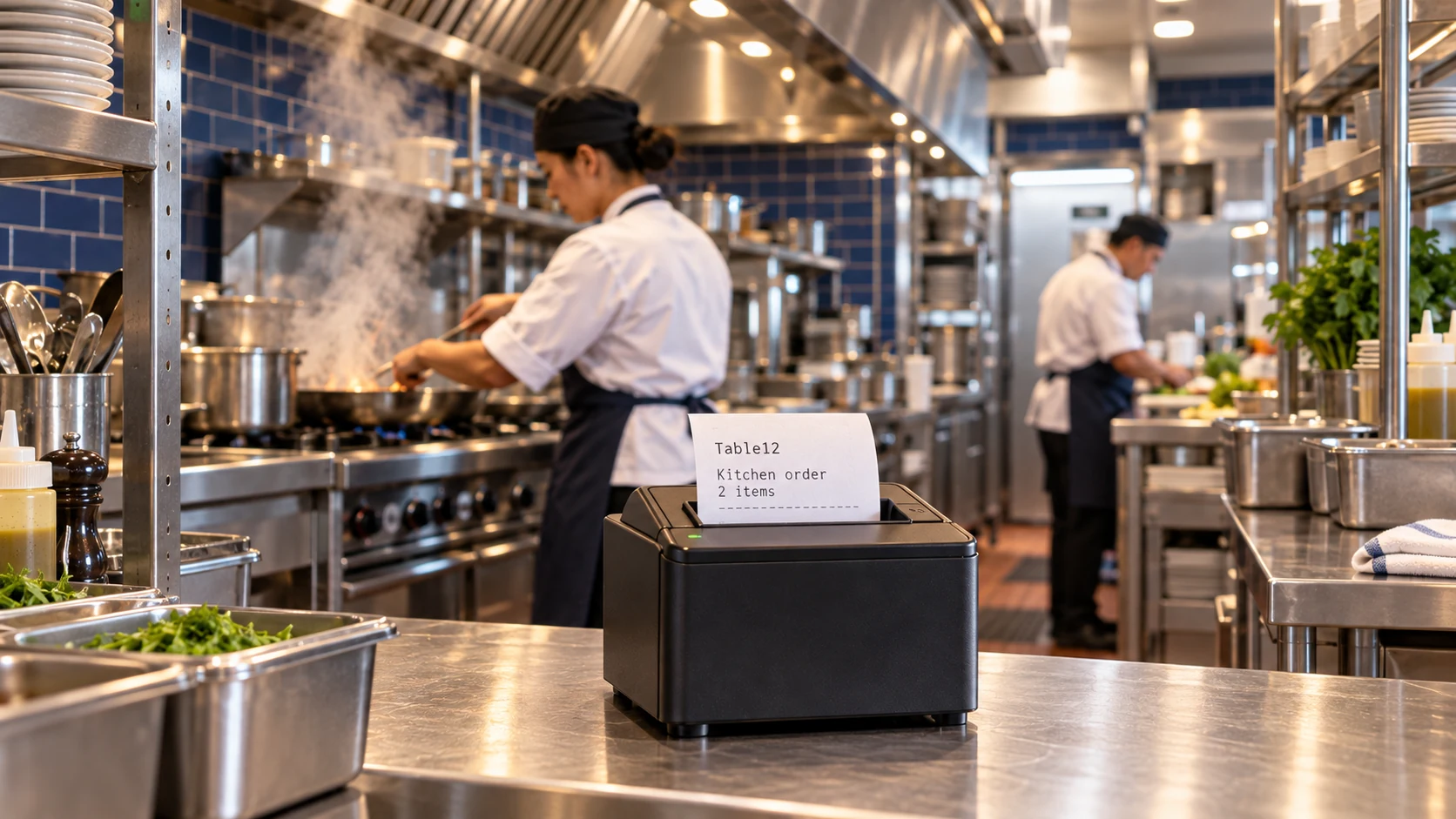
Connect the printer and check its output
Power up and join the network
Load paper, close the cover and connect power. For Ethernet, connect the printer to the restaurant router or switch. For a supported Wi-Fi model, follow its network setup. Connect the tablet to the same local network.
Select the printer on your tablet
On iPad, open the Express menu, choose Hardware, select the detected printer and turn on Connected. On Android, sign in to the store, open the printer settings for the station and select the network printer. Match its model or network address to the physical unit.
Assign receipts and prep tickets
Select the receipt printer for the register. For kitchen or bar tickets, assign the prep printer and check the item’s printer assignment in the back office. Save the settings.
Test both destinations
Send an order with a modifier. Confirm the dish prints once at the intended prep station, then print a guest receipt at the register. Repeat from each tablet that uses the printer.
If a ticket is missing
Check power, paper and the network connection. If no device sees the printer, check the printer’s network address with your installer. If receipts work but a dish is missing, check its prep assignment before resending. Give support the printer model and tablet type.
Need a hand with your setup?
Tell support which step you reached and the product version on your device. Keep passwords and private account records out of your message.