
Aldelo Express POS
Aldelo Express operating guide
Learn to take cash or card payments at checkout in Aldelo Express POS, give guests receipts and void items or orders on unpaid checks.
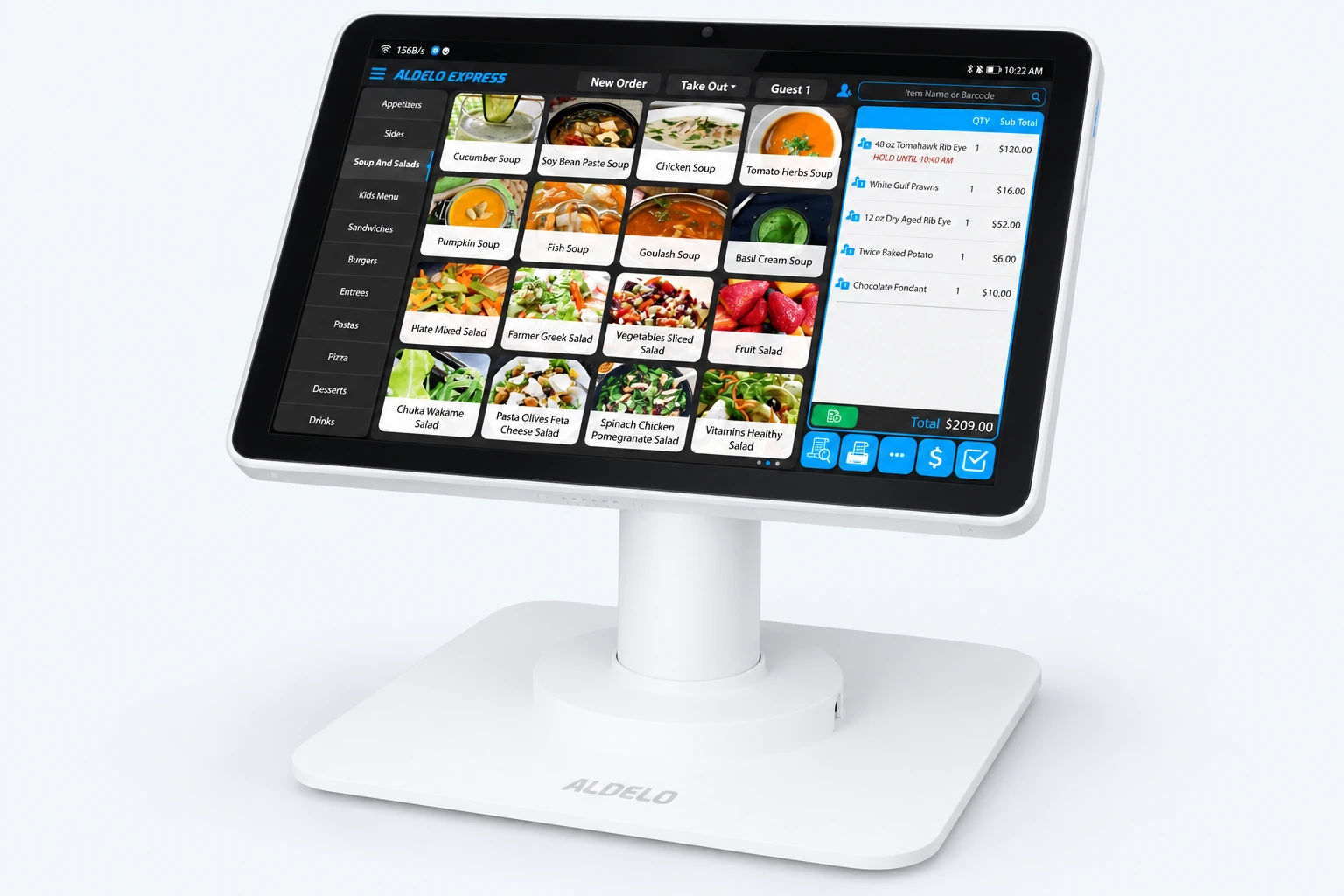
Take an order through checkout
Sign in for service
Sign in to your store. Recall shows open orders. Open More Options and choose Cashier In if you will take payments.
Order by seat and hold the main course
Choose New Order, select dine-in, then choose the table and guest count. On the item screen, assign soup to seat 1 and a burger with no onions to seat 2. Check the quantities, prices and modifier. Select the burger and set an item hold until manually released. Leave the soup ready to send.
Send the soup, then fire the burger
Select Done. Check with the kitchen that the soup is ready to prepare and the burger is held. When the table is ready for the main course, open the same table or order number in Recall, release the burger and finish the edit. Verify that the cook gets one instruction to prepare the burger with no onions.
Settle the check
Review the total, open payment and choose the tender. For cash, enter the amount received and return the displayed change. For a real card sale, follow your configured terminal prompts and confirm approval before closing.
Give the guest a receipt
Offer print or email. If the guest wants a text and the Express for Android card approval screen shows Text Receipt, tap it and confirm the guest’s mobile number before sending. Select No Receipt if the guest declines. Check that the order is paid and closed. If it is still open, verify the payment status before trying again.
Set up the dining room on iPad
Open the table layout on the iPad with manager access. Add a table, name it as the team calls it, set its maximum guest count and drag it into position. Give the patio its own floor plan. Switch to the host view and check that staff can find the right table and seat the expected party.
Recall a server or bartender’s tab
In Recall, show open orders, select the employee and narrow the list to Bar or Dine In. Match the tab or table and order number before adding an item. If the tab is missing, clear the employee filter and check the date and order status before starting a new order.
Work an open check
In Open Orders, filter by order type and status to find or print a guest check. If one guest wants to pay for two open checks, match both order numbers to the party. In Recall, choose Combine Checks and select those two checks. Compare the items, quantities and total on the combined check with both originals before taking payment. After payment, confirm the check is closed.
Void an item or a whole order
With void permission, open the unpaid check and confirm its order number. For one item, swipe left on its line and tap Void, then check the new total. For the whole order, open the three-dot menu, choose Void and check the order status. If a payment was already taken, have a manager review the original transaction before issuing a refund.
Dispatch an order with your own driver
On Express for iPad, start a practice delivery order for a guest paying cash. Confirm the street address and any apartment number. Match the bag to the order number, assign your driver and check the destination on the dispatch map. After handoff, find the order in dispatch to check its status and assigned driver. When the driver returns, confirm the guest received the order. Match the cash collected to the amount due, record the driver’s money drop and verify the check is paid and closed. In back-office Analytics, review the store’s delivery times and sales for that business date.
Take a pickup call with Caller ID
Connect a two- or four-line CallerID.com Deluxe Ethernet box to your analog phone line and to the same local network as the Express iPad. Place a test call from a number saved in Express. Answer the phone and confirm the guest’s name against the matching record. If the guest asks for their usual pizza, check their order history, confirm the size and toppings, then enter the pickup order. For a new caller, ask for the pickup name.
Transfer an open check at shift change
Maya is taking a break with bar tab 42 still open. On an Express station with Quick Transfer, she opens Recall and chooses Transfer. She selects the option for one check, matches tab 42 and chooses Luis from the available employees. Luis signs in, filters open orders in Recall to his name and checks that tab 42 has the same items and balance before adding the next round.
Power or internet outage checklist
Check the POS, router and printers separately. A tablet on battery can stay on after the router and printers lose power.
- During a power failure, check which devices have working backup power. Print a test kitchen ticket and have the cook confirm it arrived before sending guest orders to that printer.
- If the devices have power but internet service is down, switch to the store’s tested backup connection, such as a router with cellular backup. Check that the POS can still reach the local printers.
- Accept an offline card payment only if Store & Forward is already enabled for the account and device and the amount is within the store’s limit. Otherwise, offer a payment method your manager has approved.
- A stored payment is pending. When the connection returns, match each submitted result to the original check. Have a manager review pending or declined payments before retrying.
Need a hand with your setup?
Tell support which step you reached and the product version on your device. Keep passwords and private account records out of your message.