
Merchant support
Aldelo ePay terminal setup and payment recovery
Activate a terminal, connect it to Express and prepare your team for payment interruptions.
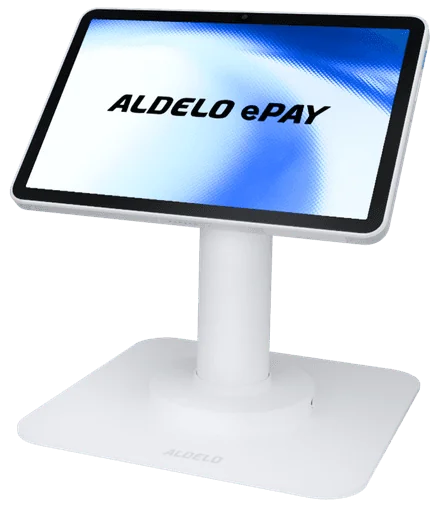
Set up, test and support your terminals
Set up a payment terminal for your store
Before ordering or moving a terminal, confirm your device and processing account work together. U.S. ePay setups require a certified processor, such as Fiserv. Supported models include Aldelo T2, P5L, PAX A920Pro and PAX A35.
- Have your store location, processor and terminal model ready. Ask Support to confirm the account assignment and how to activate the device. Share account identifiers only through the secure channel they provide.
- Before the first shift, follow Support’s test instructions. Match the amount, store name and payment result to the Express order and receipt.
Activate an additional terminal by QR
On an activated ePay device at the correct store, open Activate More Terminals. On the new terminal, choose Activate By QR and scan the code shown on the first device. Check the store name before taking a payment.
Pair Express with a separate ePay terminal
Connect both devices to the same local network. In Express, open Integrate Payment and choose External Integration (TCP). Open the external POS linking screen in ePay. Scan its link QR with Express or enter the link code, then check the connection before taking a payment.
Review payments after an outage
Before enabling Store & Forward, confirm your device, account and transaction limits with your processor. When the connection returns, use Offline Operation in ePay to review stored payments, submit pending transactions and match each result to its Express ticket.
Offline Payment Redundancy
With a supported ePay setup, Store & Forward can hold eligible transactions securely during an internet or processor interruption and submit them when the connection returns.
- Use T2, P5L, PAX A920Pro or PAX A35 with a compatible account. Configure Store & Forward and transaction limits at your store before an interruption.
- Agree on how staff handle pending payments, receipts and requests that need a manager’s help.
- Review submitted transaction results against POS tickets and resolve pending or declined items before closeout.
- A stored payment is pending, not an authorization. Review submission results and reconcile the payment with the POS ticket after connectivity returns.
PAX A80 countertop terminal
The PAX A80 is retired and unsupported by Aldelo. For a countertop replacement, ask Customer Care to check your processor and the connection at your register.
PAX D190 wireless terminal
The PAX D190 is retired and unsupported by Aldelo. If you take payments at the table, ask Customer Care which handheld works with your processor and your restaurant’s Wi-Fi.
Tokenized payments at checkout
With Aldelo Pay, a token replaces the guest’s credit card number in the POS. If a guest writes a tip on the receipt, staff can reopen the check on a supported Aldelo Express terminal and enter the tip without asking for the card again. The time allowed for adjustments depends on your merchant account.
Aldelo ePay help for merchants
Find setup instructions, payment recovery and account help for your store.
Need a hand with your setup?
Tell support which step you reached and the product version on your device. Keep passwords and private account records out of your message.