Use a demo store or a manager-approved test order. Ask the kitchen to follow along.
Start the table
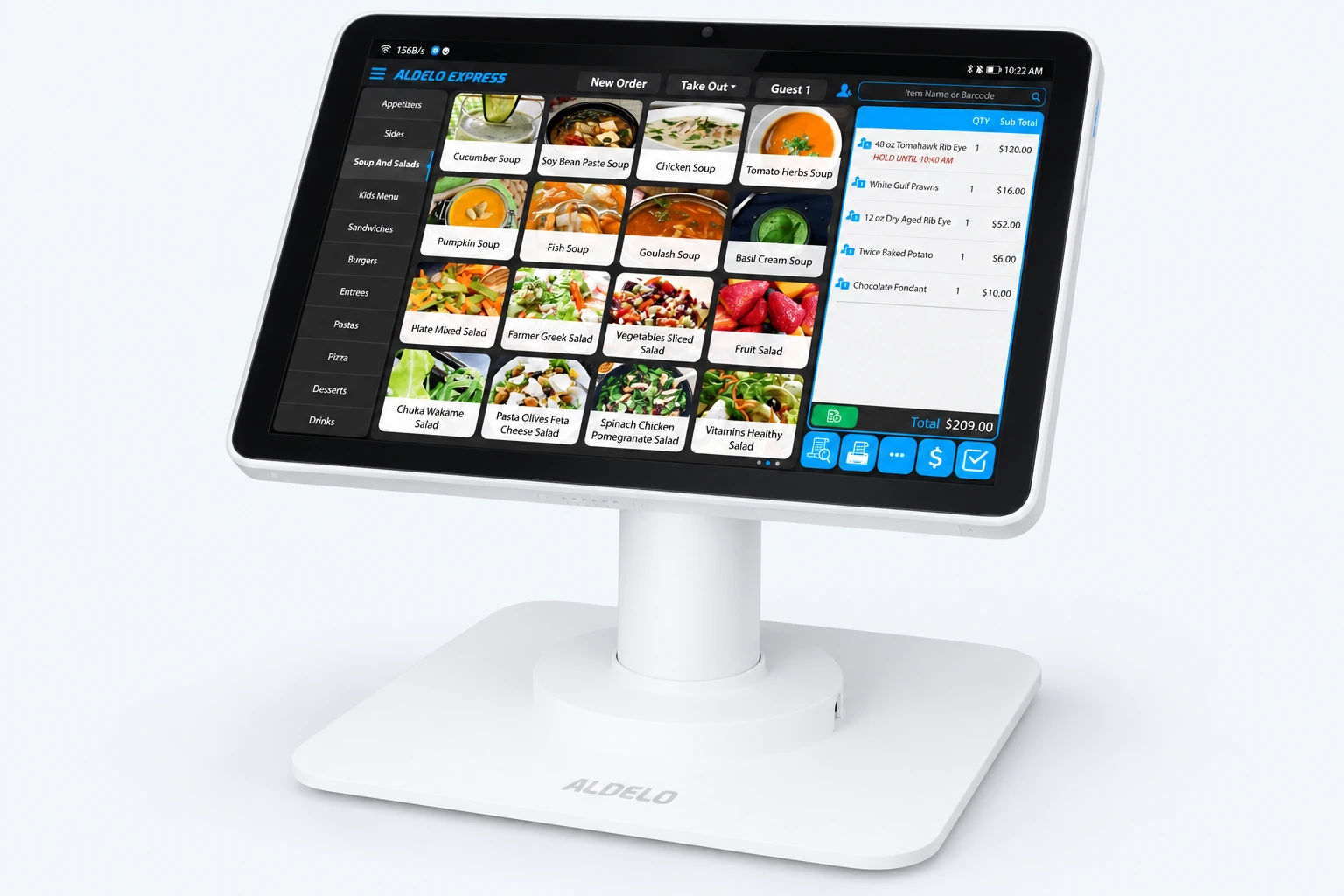
Sign in to Express. Choose New Order, select dine-in, then choose the table and guest count.
Assign seats and hold the burger
Add soup to seat 1 and a burger with no onions to seat 2. Check that the modifier is on the burger. Select the burger and set an item hold until manually released.
Send the soup
Select Done. Confirm the kitchen has the soup and the burger is still held.
Fire the main course
Open the same table and order number in Recall. Release the burger’s hold and finish the edit. Ask the cook to read the burger and its modifier back to you.
The kitchen gets the soup first, then one instruction for a burger with no onions. Both items stay on the same table check, assigned to their seats.
If something looks wrong
If you cannot find the check, clear the employee filter in Recall and verify the date and open-order status. If the burger is missing or looks duplicated, confirm its hold status and what the kitchen received before sending again.
Follow a modified drink from the counter to the kitchen
Use a test order with your counter and prep team. Choose a drink and modifier already on your menu and confirm which station should get it.
Enter the drink and its modifier
Start a New Order in Express. Add a latte and select oat milk, or use the equivalent choices on your menu. Read the drink and modifier back from the order before selecting Done. Note the order number.
Match the ticket at the prep station
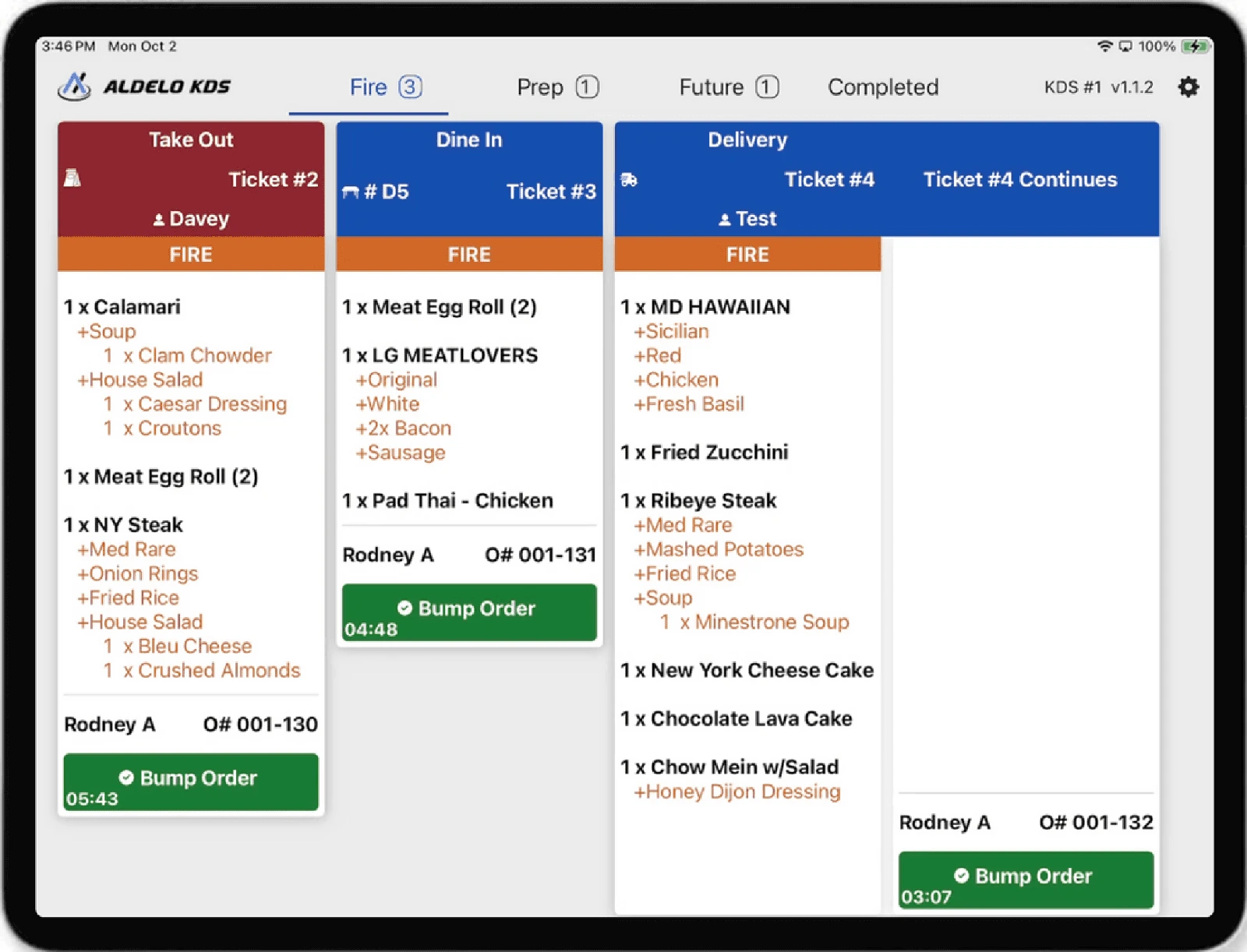
Find the same order number on the white Kitchen Display. Match the quantity, drink and milk choice to the POS. Open item details if you need to see the full modifier.
Complete the handoff
When the drink is ready, mark the item complete using your station’s usual procedure. If your store uses expo, match the same ticket there. When the whole ticket is ready, tap Bump Order on that ticket at expo.
On the current white Kitchen Display, each modifier appears below its item.
The prep station receives the modified drink once. If you use expo, the completed item appears there and the ticket leaves the active queue when bumped.
If something looks wrong
If the ticket is missing, reopen the original order in Express. Check that the modifier was saved and that the drink routes to the display you are watching. Use the order number to check the other station before sending again.
Aldelo Express Cloud, a phone and your Express POS
Enable Online Order and check the guest menu
Have your Express store and menu ready. Use manager access and test before sharing the ordering link with guests.
Connect the store
Sign in to Aldelo Express Cloud and select the right store. Open App Marketplace, find Masa Online Order and choose Connect. The Express menu syncs automatically.
Check the guest menu on a phone
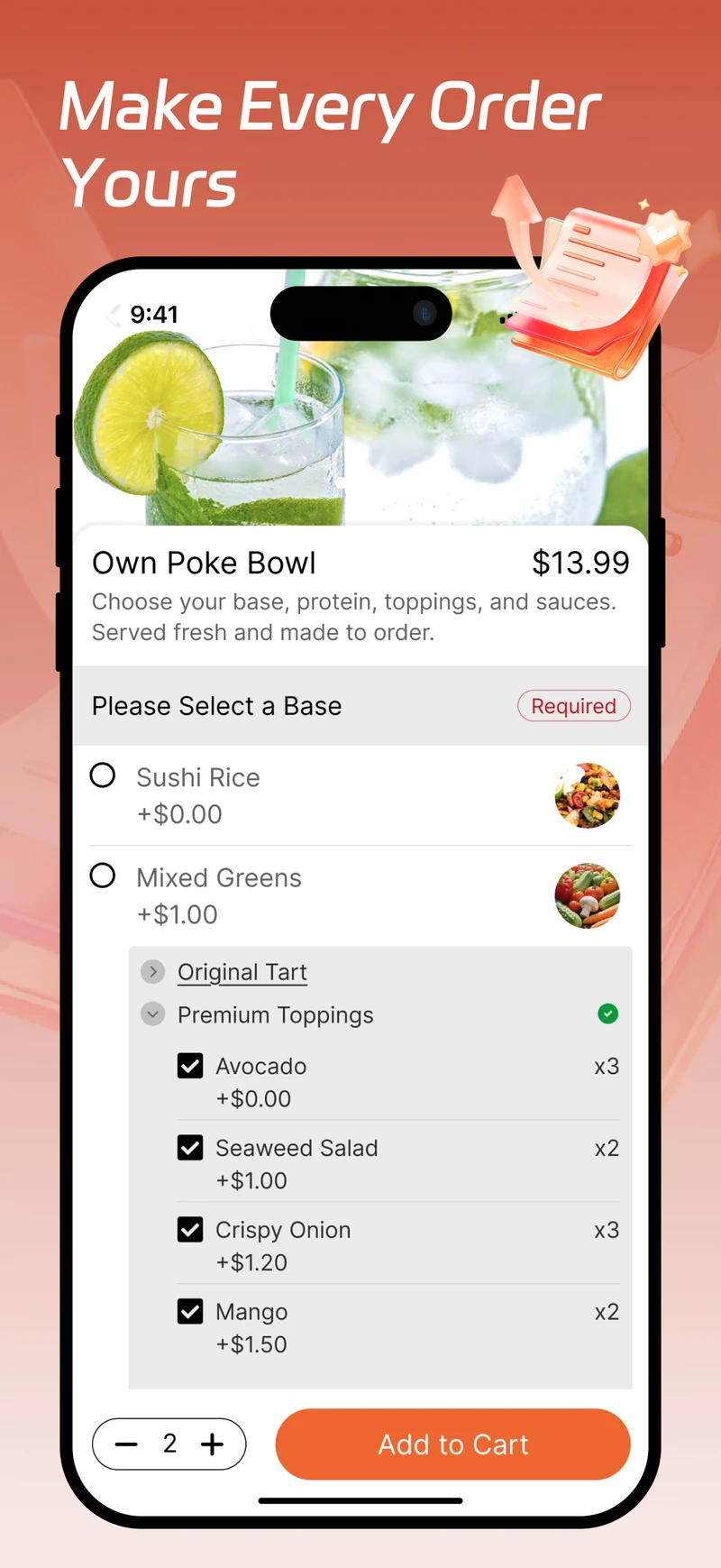
Open your restaurant’s ordering link. Confirm the store, pickup hours and menu. Open one item and compare its price and modifier choices with Express.
Send one test pickup order
Use your store’s approved test procedure. Add an item with one change, such as extra cheese. Match the phone confirmation to the order in Express. Check that the kitchen display or printed ticket shows the change.
Open an item on your phone and compare its options with Express.
The guest menu shows the right store, pickup hours, price and options. Your test order reaches Express and the kitchen with the same modifier.
If something looks wrong
If a price or option is wrong, verify the selected store and the source item in Express. Check the same guest link again after the menu syncs. If the order is missing, check the original confirmation and the intended POS and kitchen destination before sending another test.
At the Aldelo Express sign-in screen, open the main menu in the upper left. If Help is listed, tap it and choose a topic to see an illustrated guide.
Watch a lesson on iPad
Choose Show Tutorial Video from the sign-in menu, then open the module you want to learn. Tap Play Tutorial if a lesson is available. Tap Exit Tutorial to return to the module.
If a control is missing
For iPad videos, ask your manager to check Settings → Device Config → Device Behaviors in the cloud back office. Allow Training Mode must be set to Yes. If the menu on your tablet differs, tell support your device model and Express version.
Tell Aldelo Support which POS product and device you use. For online training, include the task you want to practice. For software installation, include the number of stations and your preferred date and time zone.
For an on-site visit, ask your installing dealer about availability and fees.