
Aldelo Express POS
Set up Masa ordering QR codes
Link an Aldelo QR sticker to your storefront, pickup menu or a specific table using Aldelo Express on iPad.
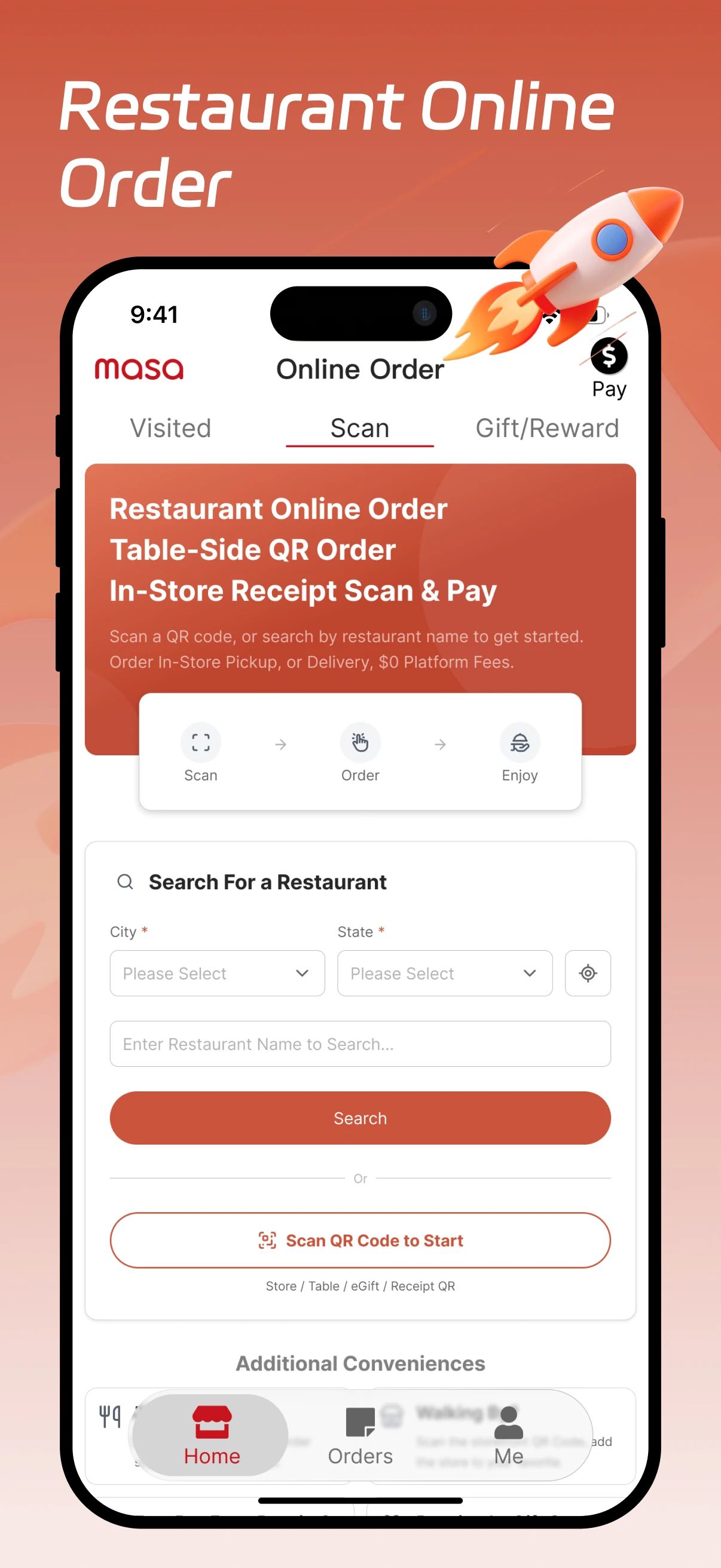
Link and test each sticker
Scan the sticker in Express
On the Express login screen, open the menu at the top left. Select “Scan App QR” and point the iPad camera at one sticker. The “Marketing QR Linking” screen opens.
Choose what guests will open
Select “Masa+ Online Store” for your storefront, “Masa+ Online Menu” for ordering in store or for pickup, or “Masa+ Table Side Ordering” for guests ordering and paying at a particular table.
Enable ordering at the table
For table codes, open “Store Info” in the Masa back office, then “Operations”. Set “In-Store Table Side Ordering” to “Yes”.
Test before placing the sticker
Scan with a guest’s phone camera. Confirm the restaurant and destination, and check the table for a table code. Place the tested sticker on a clean, dry surface at that spot. Repeat for each sticker.
Promote your Masa storefront
Help nearby guests find you in Masa. In the Masa back office for your location, open Store Info. Set “Published for Masa+ Nearby Stores Search” to Yes and save. On a guest’s phone, search Masa for your restaurant by city and name and check the address.
- Put your location’s ordering link on the “Order online” button on your website and in your social profile. Open it on a phone to check that guests land on your menu and see the correct pickup hours.
- Give pickup guests an easy way to reorder. Put a storefront or pickup QR code on a takeout bag or printed menu with the words “Scan to order pickup.” Scan a printed sample before making more.
Need a hand with your setup?
Tell support which step you reached and the product version on your device. Keep passwords and private account records out of your message.