DoorDash
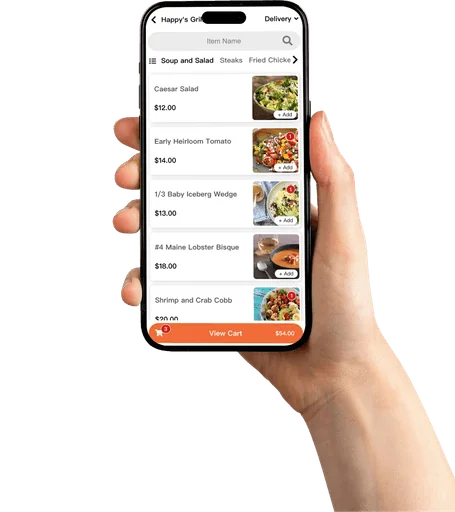
Direct integration brings DoorDash orders into Aldelo Express and routes them to kitchen printers or KDS.
- POS menu, pricing and availability sync
- Connect your DoorDash merchant account
FOR YOUR CONNECTED ORDER CHANNELS
Ordering & app integrations
Connect DoorDash and Uber Eats orders with Aldelo Express, alongside Online Order and developer integrations. Start with the specific channel or app your restaurant needs.
BUILT AROUND THE WORK
Direct integration brings DoorDash orders into Aldelo Express and routes them to kitchen printers or KDS.
Receive Uber Eats orders alongside restaurant orders, with the same kitchen handoff.
Online Order connects your branded guest ordering experience to the POS without using a delivery marketplace.
For a custom integration, start with the developer program and confirm the operations and data your application needs.
Choose the connection for your POS edition. Before activation, confirm the records, sync timing and subscription terms for your store.
Once connected, Aldelo Express sends accounting and time card summaries to QuickBooks Online. If your first day’s Express sales report shows $800 and your time cards total 24 hours, your bookkeeper should see both totals in QuickBooks for the same store and business date. If sales differ, check which accounts they were mapped to.
Ask about QuickBooks OnlineMarginEdge combines POS sales with invoice data to track food costs. Express sends sales and labor through its app connection. For Windows POS, MarginEdge uses a connector on the back-office PC to collect sales.
MarginEdge setup by editionRestaurant365 lists sales detail and labor for both editions. Select the cloud connection for Aldelo Express or the local connection for Aldelo Pro on Windows, then confirm your version with the provider.
Restaurant365 integration detailsFOLLOW THE TASK
Review the named ordering integration and the merchant account or app requirements for that channel.
Connect the channel merchant account and sync the POS menu. Check items, modifiers, prices and availability before accepting orders.
Confirm how orders enter POS, reach kitchen printers or KDS, and move through fulfillment.
YOUR NEXT STEP
Choose the channel, confirm access to its merchant account and test an order all the way to the kitchen.
Show staff where channel orders appear and how to escalate fulfillment or connection problems.
Open DoorDash setup guide Open Uber Eats setup guide Training & tutorials Product supportRelated to this page
These suggestions match this page and any preferences you selected.
Recommendation preferences stay in this tab for the current visit. Reset clears them; hiding this section leaves other website features available.
LET’S MAKE IT WORK FOR YOU
Tell us about your restaurant and the tools you need. We’ll help prepare an itemized proposal.