
Visual menu checklist
Use menu photos across POS, kiosk and online ordering
Check how staff and guests find the same dish in Express POS, Self-Service Kiosk and Masa Online Order.
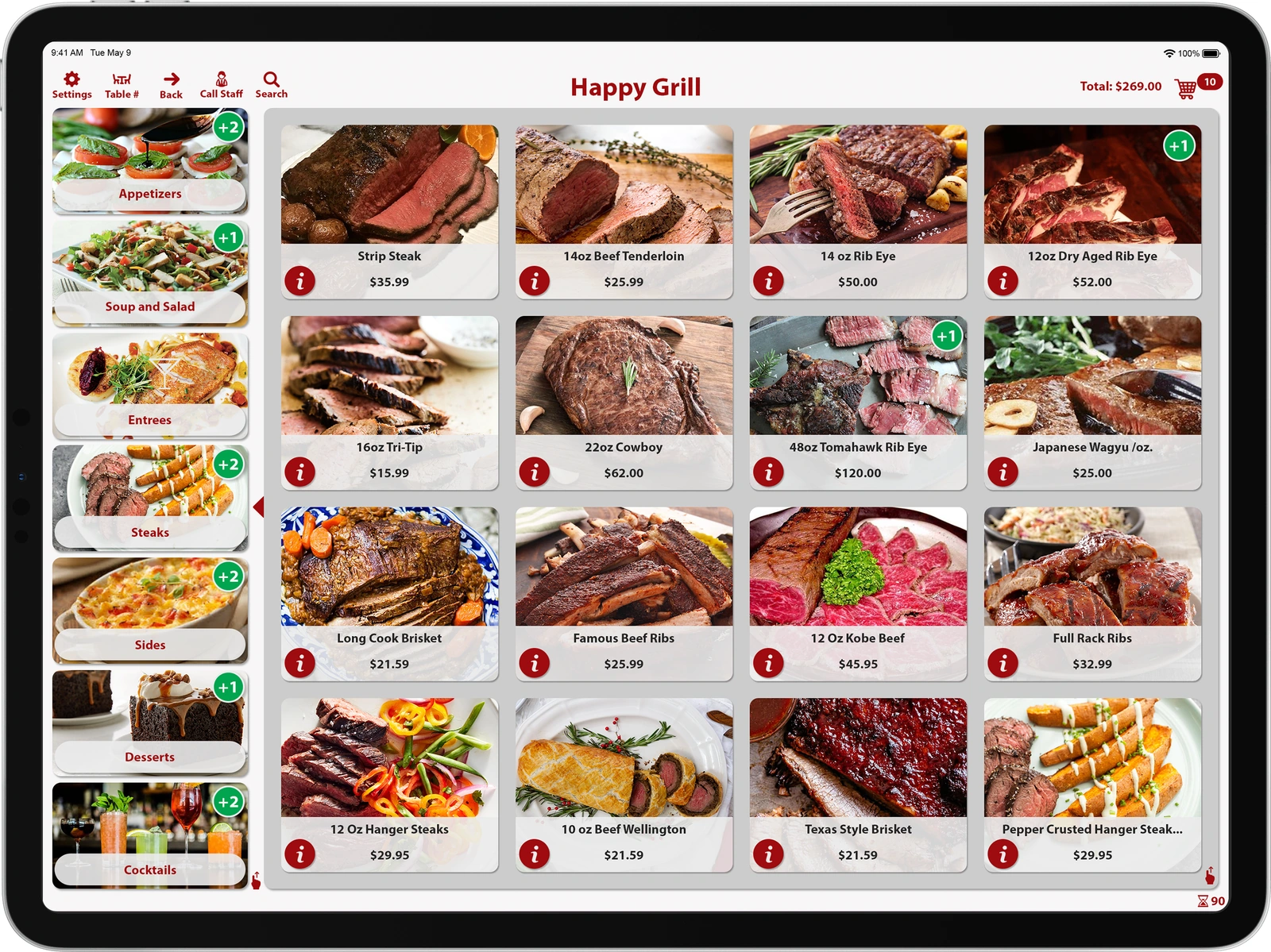
Follow the dish across your menu screens
Match the photo to what you serve
Choose a clear photo of the actual dish. Check its name, description and price with the manager. Open the item on each enabled ordering screen and confirm that the photo belongs to the right item.
Let staff find it in Express POS
Ask a team member to find the dish by its image, select a modifier and read back the order. Check the item and modifier on the kitchen ticket. Use clear names for similar-looking dishes so staff can tell them apart.
Try the guest path at the kiosk
At Self-Service Kiosk, browse to the dish, open its choices and check the order summary. Have someone unfamiliar with the menu try it. Note where the photo helps and where a name or description needs to be clearer.
Check the same dish on a phone
Open your restaurant’s Masa Online Order link on a phone. Compare the photo, price and choices with the POS. Place a test order and match it to Express and the kitchen ticket. Repeat the check after menu changes.
Need a hand with your setup?
Tell support which step you reached and the product version on your device. Keep passwords and private account records out of your message.