
iPad setup
Use Guided Access on a restaurant iPad
Keep a kiosk or order-receiving iPad in one app during service, then unlock it when a manager needs access.
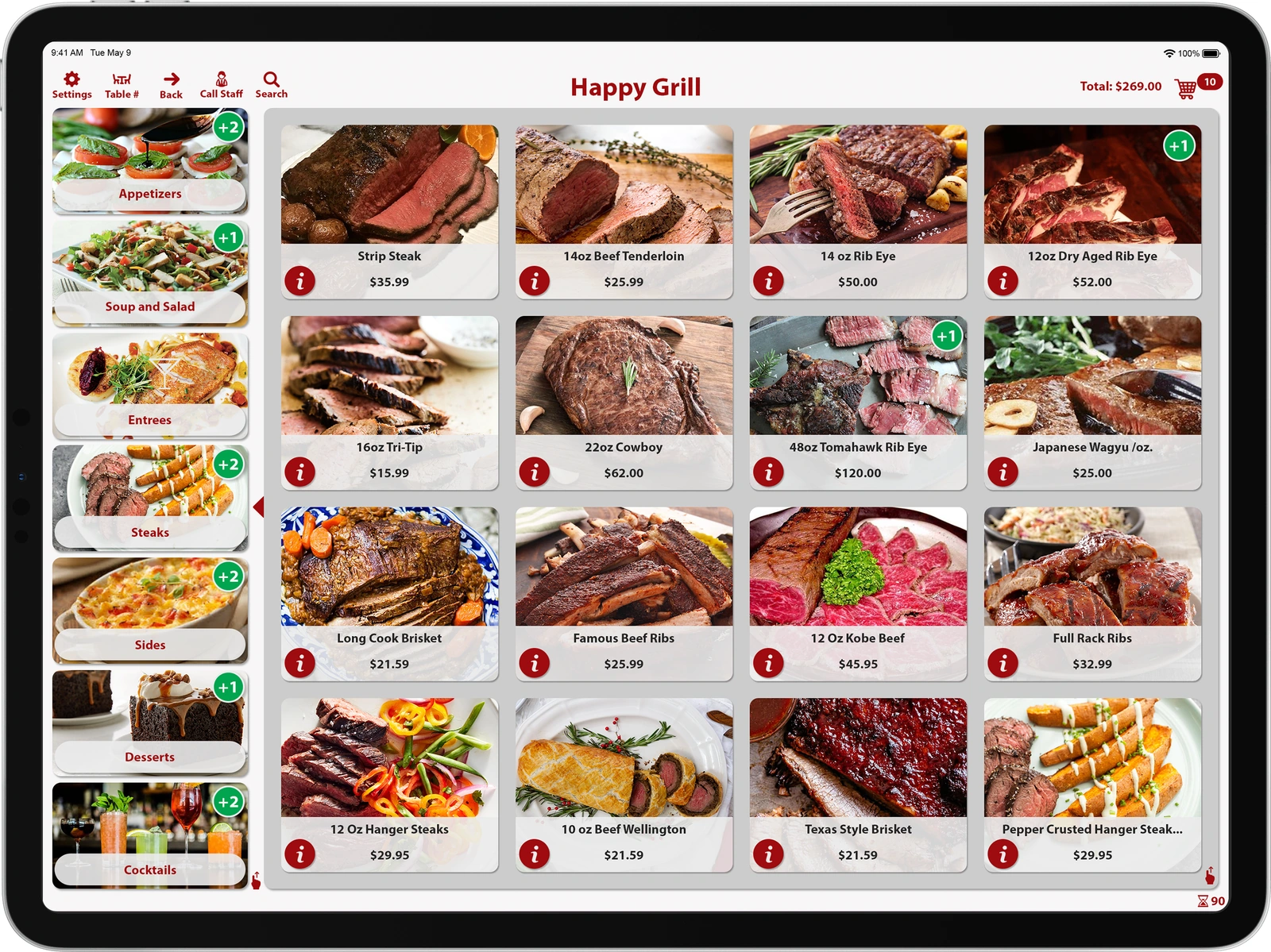
Start, test and end a session
Turn on Guided Access
In Settings, open Accessibility, then Guided Access. Turn it on and set a code in Passcode Settings. You can also enable Touch ID or Face ID here if the iPad supports it.
Start the session in the right app
Open the app. Triple-click the Home button, or the top button on an iPad without a Home button. Choose Guided Access if a shortcut menu appears. Leave touch enabled for a guest kiosk, tap Start if prompted and check that guests can select an item.
Return the iPad to normal use
Triple-click the same button to pause the session. On iPadOS 18 or earlier, Apple specifies a double-click. Authenticate with the Guided Access code or the biometric option you enabled. If the shortcuts menu appears, choose Guided Access, then tap End.
Need a hand with your setup?
Tell support which step you reached and the product version on your device. Keep passwords and private account records out of your message.