
Gift Cards
Gift card help and restaurant enrollment
Find balance and lost-card help, enroll participating stores and plan a move from an existing gift-card program.
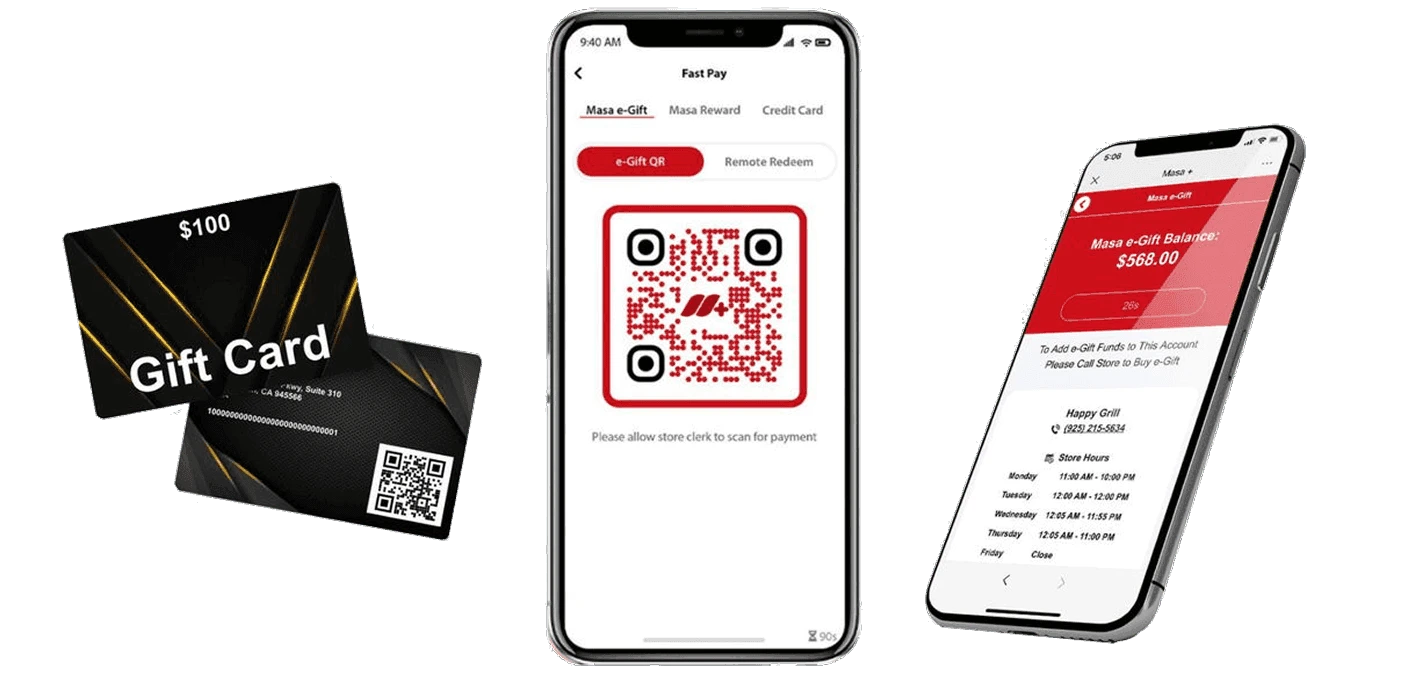
Gift cards for guests and participating stores
Check your balance
Open your eGift in your Masa wallet. For a physical card, ask the restaurant to check the balance at the register.
Lost your card?
Contact the restaurant that issued it. Authorized staff can check whether your card can be replaced.
Open-loop
A network-branded card, such as a Visa gift card, can pay for lunch at a café or groceries at a supermarket. Each merchant must accept the card’s network, and the issuer’s terms apply.
Closed-loop
Your restaurant issues a Masa gift card for use only at participating locations in your group. A guest can buy it at your downtown café and spend it at your riverside café once both locations are enrolled in the same program.
Enroll stores in a shared gift card program
Bring participating stores into one gift card program with help from Aldelo Support.
- Sign in to your Express back office and open Chains. Select your chain, or choose Create Chain if this is your first one.
- Ask Aldelo Support for the gift program enrollment form, previously called Masa Gift Program Setup. Have your chain name and list of locations ready.
- After enrollment, open Chains, then Store Groups and Participating Stores. Check that every intended location is listed before telling guests where they can redeem their cards.
- If you offer physical cards, ask support to walk you through a test. Check that a card issued at one participating store can be read and redeemed at another.
Plan your move from another gift-card program
Ask Customer Care to review your current provider and where guests should redeem their existing balances.
- Prepare a CSV of the existing card numbers and unused balances. Customer Care will explain how to share it securely.
- Review the import results with authorized staff. Check accepted rows, resolve rejected rows and reconcile the imported total with your original balance report.
- Confirm the issuing store and the transition date before conversion. Imported balances convert one-way into store credit for that store, with a record linking back to the original card number.
- Check a converted balance and a redemption with Customer Care before announcing the change to guests.
- For the initial inquiry, send your provider and store names only. Keep card numbers and balance files out of the contact form.
Need a hand with your setup?
Tell support which step you reached and the product version on your device. Keep passwords and private account records out of your message.