
Seasonal promotion guide
Plan seasonal promotions on your Customer Display
Turn one seasonal dish into a clear counter message, then check whether more guests add it to their order.
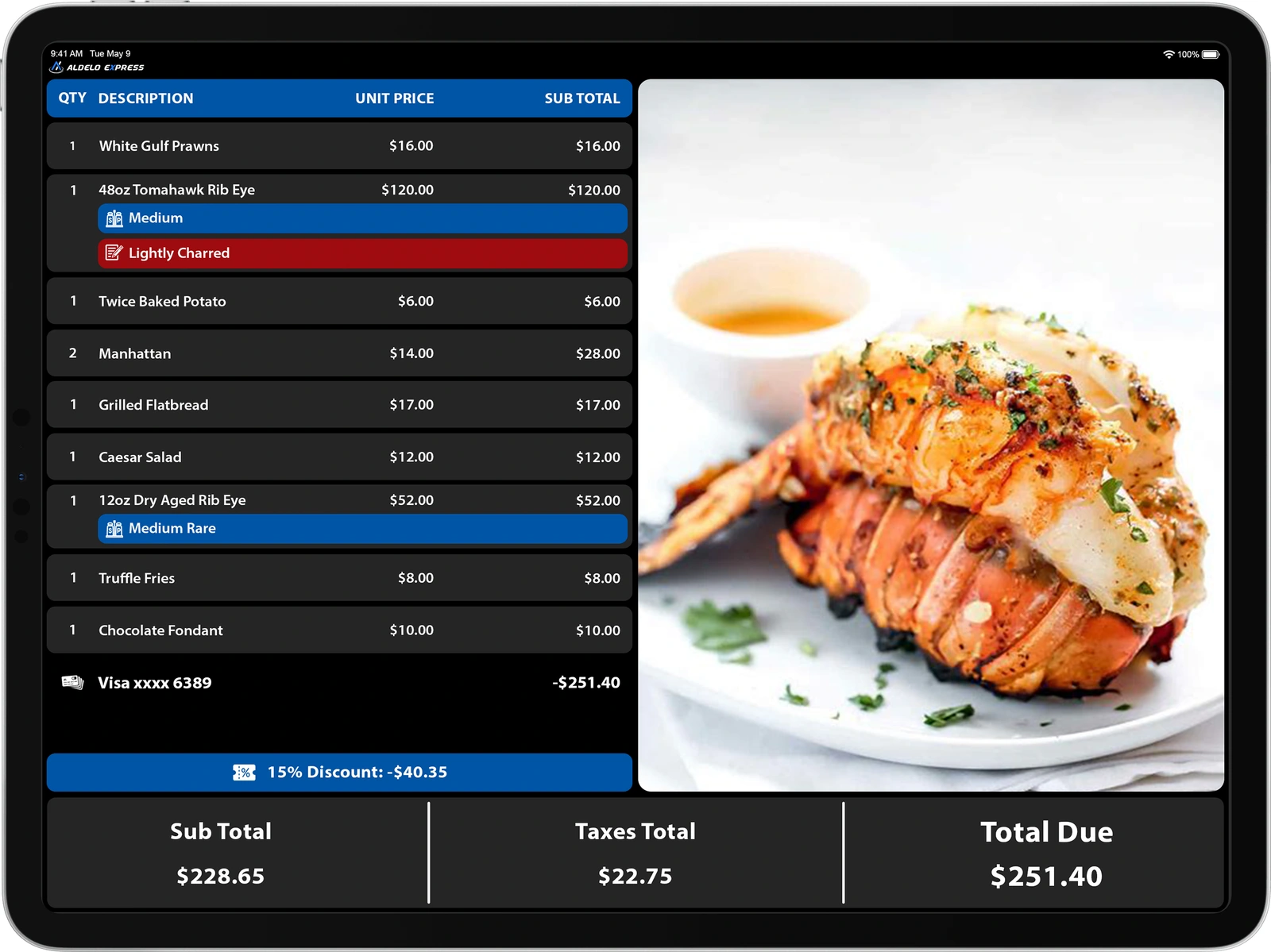
Try one seasonal add-on
Choose a dish your team can serve
For a holiday lunch, feature a slice of pumpkin pie already on your menu. Check stock, portion cost and preparation time before deciding when to promote it. Use the same item name and price at the counter and in the POS.
Build one clear visual
Use a close photo of your pie, the headline “Finish with pumpkin pie,” your actual menu price and a short availability line. Keep the type readable from the guest’s position. The photo is an invitation to order, not a replacement for the live ticket.
Check the display from the guest’s side
Preview the message in your configured promotional layout. Enter a test meal, add the pie and check the item, price and updated total together. Make sure the message does not obscure order details; remove it when the item sells out.
Give staff a simple invitation
Ask staff to say, “Would you like a slice of pumpkin pie with your meal?” If the guest accepts, add the item and confirm the new total. The display supports the conversation; it does not add the item for the guest.
Count add-ons, then decide what to change
Record checks containing the pie and total checks for the same lunch period. Compare the share with a similar period before the campaign, alongside waste and guest feedback. Use the result to keep, revise or stop the message; seasonal traffic can also affect sales.
Try your campaign in a demo
Bring your item photo, guest link and planned message. Ask Aldelo to walk through the setup and a sample guest visit with your team.