
Aldelo POS for Windows
Aldelo POS for Windows requirements and upgrades
See a Windows POS update notice? Ask Customer Care about support and software updates for your store, or use this guide to prepare for a register upgrade.
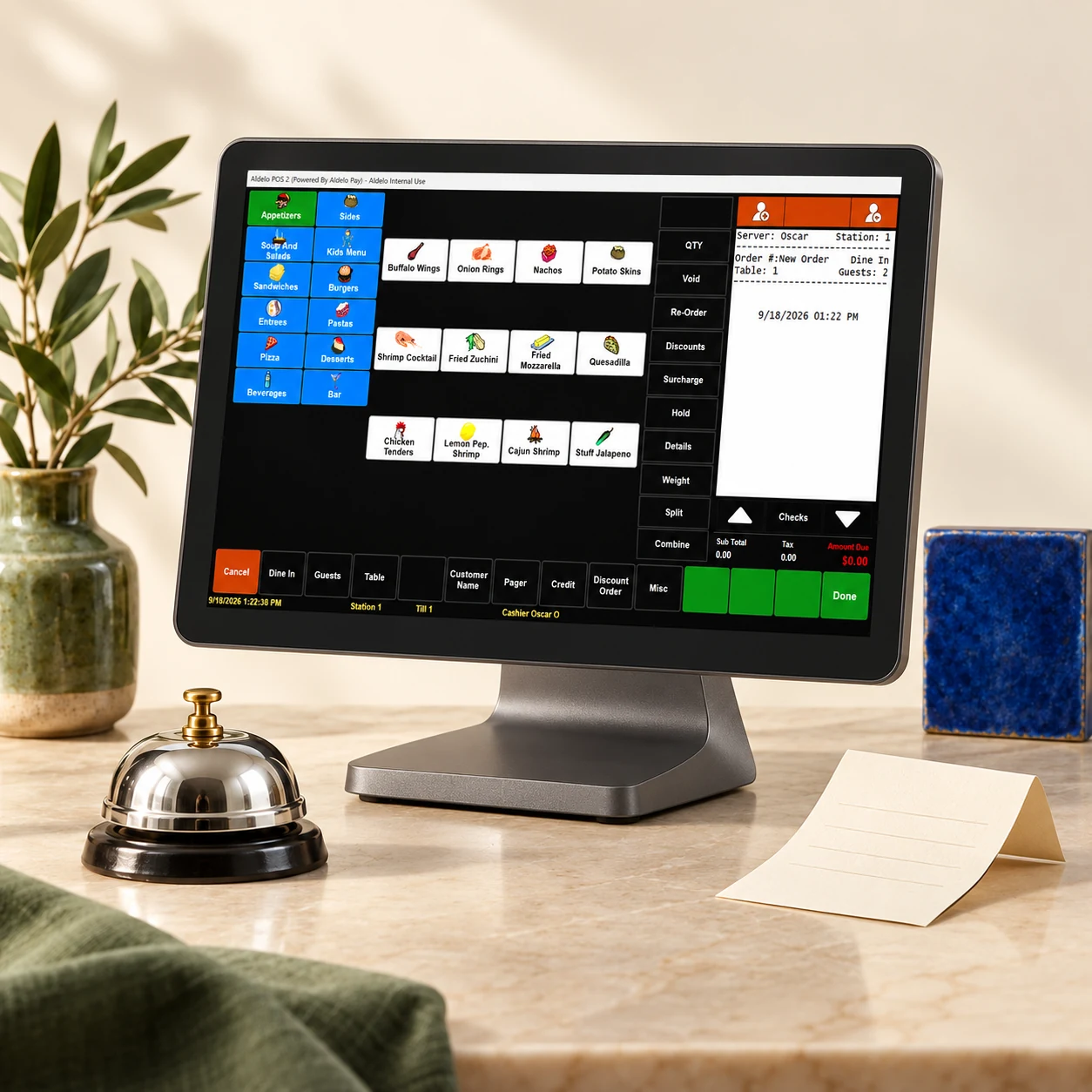
Plan your Windows POS upgrade
Find your Aldelo version
In Windows Control Panel, open Programs and Features. Find your Aldelo software and copy its name and version if listed. If you see Aldelo for Restaurants Pro or use Aldelo EDC for payments, include those versions in your request.
Check the PC specifications
On Windows 10 or 11, open Settings → System → About for the Windows edition, version, processor, RAM and system type. Find free disk space under System → Storage. For a replacement PC, send its proposed specifications too.
Confirm the requirements for your version
Ask Aldelo which Windows editions, hardware specifications and peripheral drivers your target POS version supports. Include your station list so support can check the database PC and registers separately, identify the correct installer and confirm any activation steps.
Back up and test before reopening
Schedule the update outside service. Make a current database backup and confirm how to restore it with support. After the update, open the menu at each station, send a test order to the kitchen, print a receipt and verify your payment setup with support before serving guests.
Move from Windows POS to Aldelo Express
Customer Care can help you transfer menu items, modifiers, employee records and customer records from Aldelo POS for Windows to Aldelo Express. Include your store name and Windows POS version in your request. Customer Care will explain how to share your data securely.
Need a hand with your setup?
Tell support which step you reached and the product version on your device. Keep passwords and private account records out of your message.